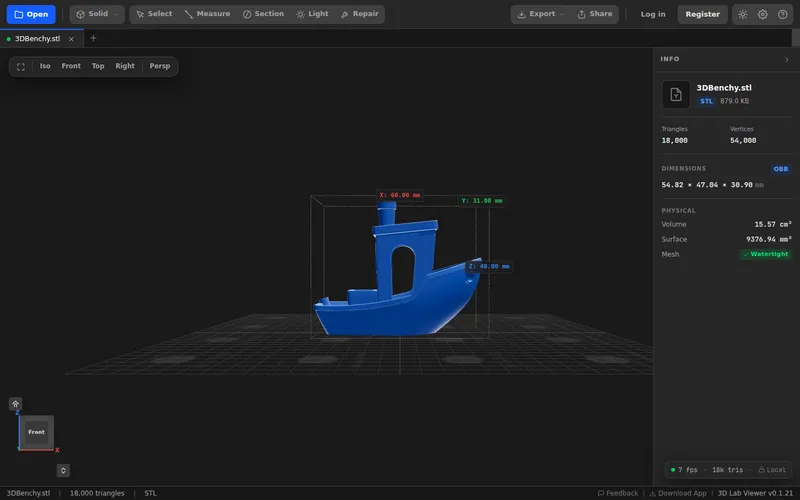
When you’re working with 3D models – whether for 3D printing, CNC machining, engineering, or design – the first question is often: how big is this?
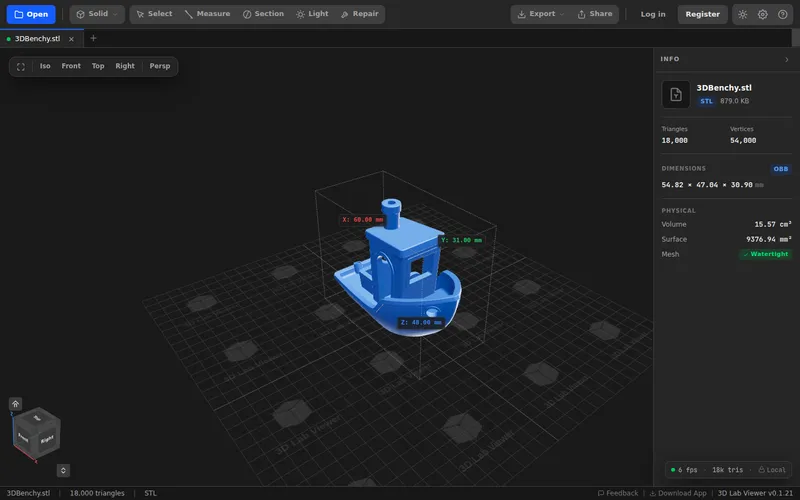
3D Lab Viewer now displays a bounding box around your models, showing the length, width, and height directly in the 3D viewport. No need to open a slicer or CAD software – just upload and see the envelope instantly.
Why Bounding Boxes Matter
A bounding box (also called an axis-aligned bounding box or AABB) is the smallest rectangular prism that completely contains your 3D model. It tells you the model’s outer envelope along each axis.
This is critical for:
- 3D printing – Does the model fit on your printer’s build plate and within height limits?
- Manufacturing – Will it fit in a mold, on a CNC bed, or in packaging?
- Shipping & logistics – What are the worst-case dimensions for transport?
- Scene composition – How much space does it occupy when placed with other objects?
- Unit/scale verification – A bounding box that’s 1000mm wide when you expected 10mm signals a units mismatch (mm vs inches is common)
Traditionally, you’d open a slicer (Cura, PrusaSlicer), import the model, then check the dimensions. Or you’d launch a CAD program. That’s overkill just to see size.
Now: drag. drop. see the box.
How It Works
Once you upload a 3D file (STL, STEP, OBJ, 3MF, GLB), the viewer:
- Parses the geometry
- Calculates the minimum and maximum coordinates along X, Y, Z axes
- Draws a translucent box around the model
- Labels each axis with its dimension in the model’s native units
You can toggle the bounding box on/off via the toolbar. The values update automatically if you scale or transform the model (if such features are enabled).
Real-World Use Cases
1. 3D Printing Service Quoting
At 3D Lab Bali, every customer inquiry starts with: “Will this print?” We open the STL in the viewer, check the bounding box, and immediately know:
- Does it fit on our printers? (Ender 3: 220×220×250mm, etc.)
- What’s the print volume? (estimates material usage)
- Is the scale correct? (sometimes models come in inches but need mm)
This saves us from slicing every single inquiry just to check size.
Workflow: Upload → See bounding box → Compare to printer build volume → Accept/reject → Slice only for reliable quotes
2. Engineering Design Review
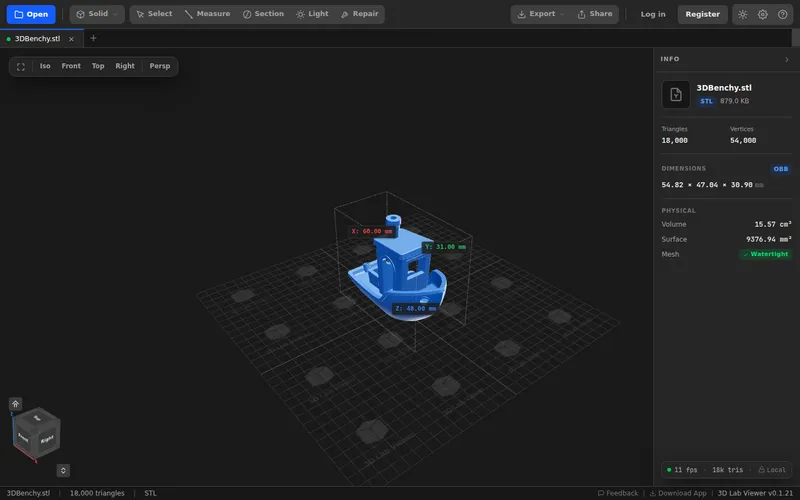
An engineer sends a STEP file to a client for review. The client needs to know if the part fits into an existing assembly. Instead of asking for 2D drawings, they upload to the viewer, enable the bounding box, and instantly see the envelope. They can also use [measurement tools]({{ relref “../measuring-tools.md” }}) for specific distances.
3. E-commerce & Product Visualization
An online store wants to show product dimensions in the listing. They upload the 3D model to the viewer, embed it on the product page, and the bounding box is visible to customers. Shoppers can verify “this shelf is 80cm wide” without guessing.
4. Architecture & BIM
While we don’t yet support IFC/DWG, for OBJ/GLTF architectural visualizations, the bounding box shows room envelope, object sizes, and helps with space planning – all directly in the browser.
Bounding Box vs. Measurement Tools
| Feature | Bounding Box | Measurement Tools |
|---|---|---|
| What it gives | Overall envelope (L×W×H) | Precise distances, areas, diameters |
| Use when you need | Quick size check, fit verification | Exact distances, hole sizes, surface areas |
| Speed | Instant (one click) | Requires clicking points/faces |
| Best for | “Does it fit?” | “What’s the exact dimension here?” |
They complement each other. Check the bounding box first, then measure specific features if needed.
Supported Formats & Units
The bounding box works with all our supported upload formats:
- STL (3D printing)
- STEP/STP (CAD)
- OBJ (with textures)
- 3MF (manufacturing)
- GLB/GLTF (web 3D)
Units are derived from the file’s metadata where available (STEP files typically specify mm; STL has no units so we assume mm, but the [measurement tools]({{ relref “../measuring-tools.md” }}) can help you verify).
Tips for Using Bounding Boxes Effectively
- Combine with measurement tools – Bounding box gives you the overall envelope; measurement tools let you check critical dimensions within that envelope.
- Check rotation – The bounding box is axis-aligned, not oriented to the model’s natural axes. Rotate the model to understand its true envelope in different orientations.
- Use for comparison – Upload two models (e.g., a printer bed size as a separate model) and visually compare the bounding boxes.
- Remember scale – If your bounding box says 1000mm but you expected 10mm, your file likely uses different units. Rescale in a slicer or CAD tool.
Frequently Asked Questions
Q: Does the bounding box include internal cavities?
A: No. It’s the outer envelope of all geometry. Internal holes or cavities don’t affect the box size.
Q: Can I see the bounding box in different colors or line styles?
A: Currently it’s a semi-transparent outline with dimension labels. We may add customization in the future.
Q: Does the bounding box update if I rotate the model?
A: The box is axis-aligned to the world axes, not the model’s local orientation. Rotating the model changes how it fits within that world-aligned box, but the box dimensions stay the same unless you scale or transform the model itself.
Q: How accurate are the dimensions?
A: Extremely accurate – computed directly from vertex positions. If your model has scale issues (e.g., imported with wrong units), the box reflects whatever units are in the file. Use [measurement tools]({{ relref “../measuring-tools.md” }}) to double-check critical distances.
Q: Is there a way to export the bounding box dimensions?
A: Not yet. We’re considering a “report” feature that exports dimensions, measurements, and model metadata to PDF/CSV. Let us know if you’d find that useful.
Try It Now
Upload any 3D model to viewer.3dlab.id and the bounding box is available immediately from the toolbar. Toggle it on to see your model’s length, width, and height at a glance.
Next steps after checking the bounding box:
- Use [measurement tools]({{ relref “../measuring-tools.md” }}) for precise distances
- Share the model with colleagues via [file sharing]({{ relref “../shared-files-management.md” }})
- View on [mobile]({{ relref “../mobile-friendly.md” }}) for on-the-go checks
- Speed up workflow with [keyboard shortcuts]({{ relref “../keyboard-shortcuts.md” }})
Want More?
This is part of our mission to make 3D model inspection simple and accessible. What other size/fit features would help your workflow? We’re considering:
- Automatic build volume checking (flag if model exceeds common printer sizes)
- Volume calculation (for estimating material usage)
- Center of mass / bounding sphere
- Multiple model bounding boxes (for assemblies)
Tell us what you need via GitHub Issues or the feedback form on the site.
Perfect for makers, engineers, and designers who need to quickly verify 3D model size without leaving their browser.